You can set up your Teaching Blocks on either the Accounts or Planning Tabs. By using the Weekly Teaching Block Settings page, you can set up a standardized calendar that forms the basis for every week of your school year in just moments. All you have to do is set up your schedule one time, and every week will be displayed the same way.
1. Setting up Teaching Blocks
2. Editing a Teaching Block
3. View a Help Video on Setting Up Teaching Blocks
1. Setting up Teaching Blocks
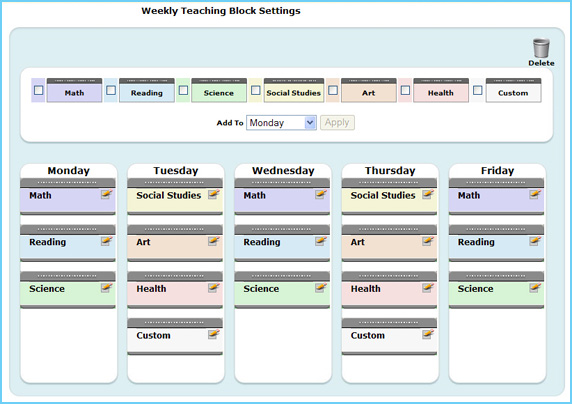
- To add teaching blocks to your calendar, select one or more subject blocks from the list at the top of the page. Select a day from the Add To drop-down field and click the Apply button.
- Repeat this process for each day that you would like to schedule teaching blocks on.
- Once you have added Teaching Blocks, you can move them up or down on the given day by dragging and dropping a teaching block wherever you want it. You can move them to a different day by clicking on the teaching block and dragging it to a new day.
- To delete a teaching block, click and drag the teaching block to the trashcan labeled Delete in the upper right corner.
- To edit the details of a teaching block, click on the pencil icon (
 ) located within each block to bring up a details screen. ) located within each block to bring up a details screen.
2. Editing a Teaching Block
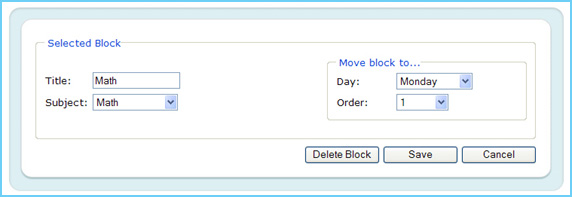
- To name the teaching block, fill in the Title field with the name for the block.
- Select a subject from the Subject drop-down field.
- To move the block to a different day, select the day from the Day drop-down field.
- To move the block to a different position on the same day, select the position by using the Order drop-down box.
- To delete a teaching block, click on the Delete Block button.
- To save your changes to the teaching block, click the Save button.
- To exit this screen without saving your changes, click the Cancel button.
Back to Top
3. View a Help Video on Setting Up Teaching Blocks
 Click here to watch a short instructional video about how to use Teaching Blocks. Click here to watch a short instructional video about how to use Teaching Blocks.
Note: The video shows the subject blocks listed to the side of the weekly calendar. The orientation of the page has changed so that the subject blocks now appear above the weekly calendar. All other functionality is identical.
Back to Top |